
Updated 1/2026
Creating a website that looks great is one thing. Making sure it’s usable by everyone, regardless of their abilities, is another challenge altogether. In today’s digital world, web accessibility isn’t just a courtesy; it’s a necessity. This article explores the essential web accessibility guidelines that form the backbone of an inclusive internet, ensuring your digital presence is open to all.
Following these standards means designing and developing a website so that people with disabilities can perceive, understand, navigate, and interact with it effectively. This involves a thoughtful approach to everything from your site’s code and color scheme to its navigation and content structure, touching on crucial elements like contrast and semantic markup. To help you put these principles into practice, we’ve created a comprehensive checklist that you can download at the end of this article.

Understanding Web Accessibility & Its Importance
Web accessibility is the practice of removing barriers that prevent interaction with, or access to, websites by people with disabilities. When sites are correctly designed, developed, and edited, all users have equal access to information and functionality. Ignoring this aspect of web development not only alienates a significant portion of the population but also exposes businesses to legal risks and missed opportunities. The drive for a more accessible web is rooted in both legal mandates and ethical considerations, recognizing that access to information is a fundamental right.
Legal & Ethical Reasons
The legal landscape surrounding digital accessibility is continuously evolving. In the United States, the Americans with Disabilities Act (ADA) has been increasingly interpreted to apply to websites as “places of public accommodation.” This has led to a surge in lawsuits against companies whose websites are not accessible. A landmark case involved Domino’s Pizza, where the court ruled that the company’s website and app must be accessible to people who are blind. This case underscored the importance of adhering to established web accessibility guidelines. Ethically, the argument is even more straightforward. An inaccessible website effectively excludes people.
For instance, Target Corporation faced a similar lawsuit in 2008, leading to a settlement where they revamped their website for better screen reader compatibility. This not only resolved legal issues but also expanded their customer base, demonstrating how accessibility investments can drive revenue growth.
As Tim Berners-Lee, the creator of the World Wide Web, famously stated, “The power of the Web is in its universality. Access by everyone regardless of disability is an essential aspect.”
This principle highlights a social responsibility to create a digital world that is inclusive by design, rather than as an afterthought.
User Demographics
The number of people who benefit from accessible design is larger than many realize. According to the Centers for Disease Control and Prevention (CDC), about one in four adults in the United States lives with a disability. This includes individuals with visual, auditory, motor, and cognitive impairments. However, the benefits extend beyond this group.
A study showed that accessible websites can increase user satisfaction by up to 35% for all users, including those without disabilities (2021, Nielsen Norman Group). An older adult experiencing age-related changes in vision or dexterity, someone with a temporary injury like a broken arm, or even a user in a noisy environment trying to watch a video without sound all benefit from features like captions, clear navigation, and high-contrast text. Following robust web accessibility guidelines enhances the overall user experience for your entire audience.
Accessible design is universal design. Creating a website that works for people with disabilities ultimately results in a better experience for every visitor.

Key WCAG Principles You Must Know
To provide a clear framework for accessibility, the World Wide Web Consortium (W3C) developed the Web Content Accessibility Guidelines (WCAG). These are the globally recognized standards for web accessibility guidelines. The latest iteration, WCAG 2.1, is organized around four core principles, often remembered by the acronym POUR. These principles state that content must be perceivable, operable, understandable, and robust. Achieving compliance, particularly at the common AA level, requires satisfying specific success criteria under each of these pillars. Understanding these principles is the first step toward creating truly inclusive digital experiences.
Perceivable, Operable, Understandable, Robust
The four pillars of WCAG provide a solid foundation for any accessibility effort. They ensure that all components of a website are presented in a way that users can process. This means providing text alternatives for images, captions for videos, and ensuring that content can be resized or viewed in different ways without losing meaning.
For a site to be operable, all functionality must be available from a keyboard, users must have enough time to read and use content, and navigation must be clear and consistent. The understandable principle dictates that text should be readable and predictable, helping users avoid and correct mistakes. Finally, robust content must be compatible with a wide range of user agents, including assistive technologies. This comprehensive approach ensures a seamless experience for all. Following the WCAG 2.1 framework is essential.
For users with cognitive disabilities, use simple language at a reading level no higher than ninth grade, avoid jargon, and provide definitions for complex terms. Predictable navigation, like consistent button placements, reduces confusion and enhances user confidence.

The Four Pillars of Accessibility
Here is a breakdown of the POUR principles:
- Perceivable: Users must be able to perceive the information being presented. It can’t be invisible to all of their senses.
- Example: Providing alternative text (alt-text) for images allows screen readers to describe the visual content to users with visual impairments.
- Operable: Users must be able to operate the interface. The interface cannot require interaction that a user cannot perform.
- Example: A website must be fully navigable using only a keyboard, as some users cannot operate a mouse. This includes logical tab order and visible focus indicators. Proper keyboard navigation is a cornerstone of an operable site.
- Understandable: Users must be able to understand the information as well as the operation of the user interface.
- Example: Using clear and simple language, providing consistent navigation across pages, and offering helpful error messages in forms.
- Robust: Users must be able to access the content as technologies advance.
- Example: Using clean, valid HTML and properly implementing ARIA roles ensures that content can be reliably interpreted by current and future assistive technologies.
To better understand WCAG 2.1 in detail, check out this explanatory video that breaks down the guidelines with practical insights.
Contrast Ratios & Text Size
A critical aspect of the “Perceivable” principle is ensuring sufficient visual contrast. Poor color contrast between text and its background is one of the most common accessibility failures, making content difficult or impossible to read for users with low vision or color blindness. WCAG 2.1 provides specific contrast ratios to meet. For standard text, the minimum contrast ratio is 4.5:1. For large text (18pt or 14pt bold), the requirement is a more lenient 3:1. These ratios ensure that text stands out from its background. Tools like the WebAIM Contrast Checker or browser developer tools can be used to verify these ratios during the design phase. It’s a simple check that can make a world of difference for many users and is a fundamental part of modern web accessibility guidelines.
The WCAG POUR principles are the foundation of digital accessibility. Master them to ensure your content is available to everyone.

Implementing Accessibility in Design
Integrating accessibility from the start of a project is far more effective and less costly than trying to fix it later. This “shift-left” approach means designers, developers, and content creators must all consider accessibility in their work. From structuring content with semantic HTML to ensuring all interactive elements are reachable via a keyboard, implementation is a team effort. Thoughtful design choices, such as using sufficient color contrast and clear visual hierarchies, lay the groundwork for an accessible experience. Technical implementation then builds upon this foundation using tools like ARIA to enhance usability for assistive technology users.
ARIA and Semantic HTML
Semantic HTML is the practice of using HTML elements according to their intended purpose. Elements like <header>, <nav>, <h1>, and <button> provide built-in meaning that browsers and assistive technologies can understand. This is the first and most important step toward creating an accessible structure. However, for complex, dynamic web applications, standard HTML sometimes falls short.
This is where Accessible Rich Internet Applications (ARIA roles) come into play. ARIA is a set of attributes that can be added to HTML elements to provide more context for screen reader users. For instance, role="alert" can be used to announce an important message, while aria-label can provide a descriptive name for a button whose purpose isn’t clear from its visible text alone.
Here is a comparison of when to use Semantic HTML versus ARIA:
| Scenario | Best Practice | Rationale |
| Page Structure | Use <header>, <footer>, <main>, <nav> | These elements natively define the main regions of a page, allowing screen reader users to jump directly to the content they need. |
| Simple Buttons | Use the <button> element | It is keyboard-focusable and recognized as interactive by default. No extra work is needed. |
| Custom Controls | Use <div> or <span> with ARIA roles (e.g., role="button") and tabindex="0" | When a custom element must be used, ARIA roles define its purpose, and tabindex makes it focusable. |
| Dynamic Updates | Use aria-live regions | This attribute tells screen readers to announce content changes (like a new chat message) without the user having to move focus. |
| Form Fields | Use <label> associated with <input> | The <label> element provides a visible and programmatically linked description for its corresponding input field. |
Using semantic HTML first is always the best practice.
As accessibility expert Marcy Sutton, Head of Learning at Vercel, advises, “The first rule of ARIA is: don’t use ARIA. If you can use a native HTML element or attribute with the semantics and behavior you require already built in, use it instead.”
This emphasizes that ARIA should be used to supplement, not replace, proper HTML.
Keyboard-Only Navigation
A significant number of users rely solely on a keyboard to navigate the web, either due to motor impairments or simply as a power-user preference. This makes flawless keyboard navigation a non-negotiable aspect of accessibility. All interactive elements—links, buttons, form fields, and custom widgets—must be reachable and operable using the Tab key to move forward, Shift+Tab to move backward, and Enter or Space to activate them.
The WebAIM Million report revealed that 95.9% of the top 1 million home pages had detectable WCAG failures (2024, WebAIM). A clear and visible focus indicator (like an outline) is crucial so users always know where they are on the page. Many designers mistakenly remove this default browser feature for aesthetic reasons, but doing so can render a site unusable for keyboard-only users. Thoughtful implementation of keyboard navigation is a core requirement of the web accessibility guidelines.
Before diving into the specific steps, it’s important to understand that a logical and intuitive tab order is just as important as the ability to focus on an element. The flow should follow the visual layout of the page, typically from top to bottom and left to right, ensuring a predictable user experience.
Step-by-step guide
Here is a step-by-step guide to testing for basic keyboard navigation:
- Start at the Top: Open your webpage and click in the browser’s address bar. Now, put your mouse aside.
- Tab Through the Page: Press the
Tabkey repeatedly. Observe the path the focus indicator takes. Does it move logically through the page from top to bottom, left to right? Can you access every interactive element, including links in the header, main content, and footer? - Check for Visibility: Is the focus indicator always clearly visible? It should be a distinct outline or style change that makes the currently focused element easy to spot. If it disappears, that’s a critical failure.
- Test Interactivity: When you land on a button or link, press
Enter. When on a checkbox or radio button, press theSpacebar. Does the element activate as expected? - Navigate Backward: Press
Shift+Tabto ensure you can move backward through the elements in a logical order. - Avoid Keyboard Traps: Make sure you can tab into and out of every element. A “keyboard trap” occurs when a user can tab into a component (like a modal window) but cannot tab back out, effectively trapping them. Pressing
Escapeshould typically close such components.
Combine semantic HTML with ARIA for complex components, and always prioritize flawless keyboard navigation with a visible focus indicator.
Testing & Tools
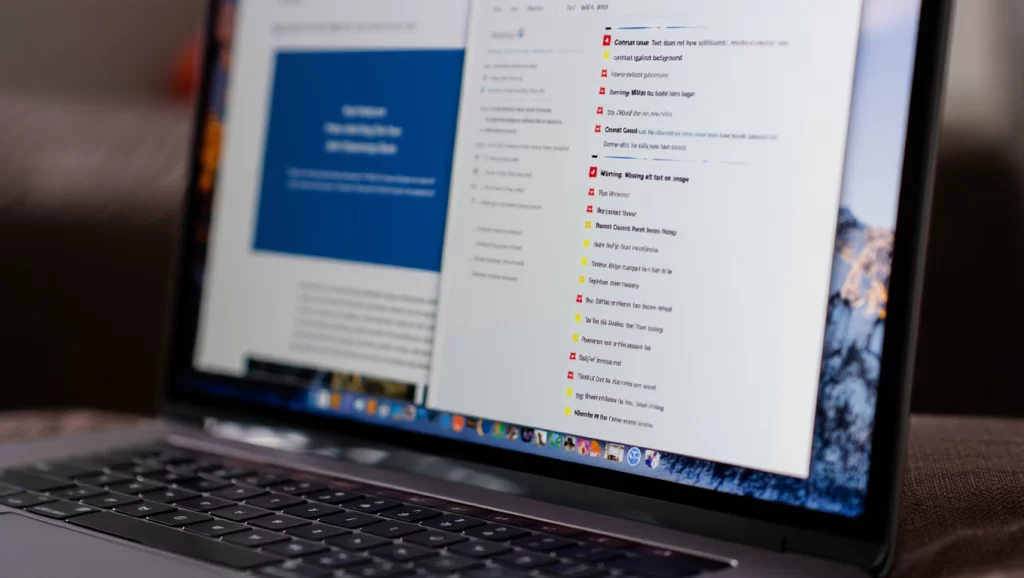
Even with the best intentions, accessibility issues can slip through. That’s why a robust testing strategy is essential. A combination of automated tools and manual checks provides the most comprehensive coverage. Automated tools are great for catching common, code-level issues like missing alt text or insufficient color contrast. However, they can’t assess the quality of the user experience. Manual audits and, most importantly, testing with actual users with disabilities are irreplaceable for discovering usability issues that algorithms can’t detect. Following a structured testing process based on web accessibility guidelines is key.
Before exploring testing tools, view this tutorial on WCAG 2.2 testing to learn about new requirements and how to apply them effectively.
Lighthouse, WAVE, Axe
Several excellent automated tools can help you get started with accessibility testing. Many are available as free browser extensions, making them easy to integrate into your development workflow. Lighthouse, built into Google Chrome’s DevTools, provides an accessibility audit that flags a range of issues and provides links to remediation advice. WAVE, developed by WebAIM, injects icons and indicators into your page to provide a visual report of accessibility features and errors. Axe, from Deque Systems, is another powerful extension that categorizes issues by severity and offers detailed guidance. These tools can quickly identify low-hanging fruit and are an invaluable first pass in any accessibility audit. Consistent use of these tools helps enforce WCAG 2.1 standards.
Here’s a list of what these automated tools are good at finding:
- Missing alternative text on
<img>elements. - Insufficient color contrast ratios.
- Missing form labels.
- Improper use of ARIA roles or attributes.
- Heading levels that are skipped (e.g., an
<h1>followed by an<h3>). - Empty links or buttons.
Manual Audits & User Testing
Automated tools can only catch a fraction of potential accessibility problems. A 2022 analysis by digital accessibility firm UsableNet revealed that automated tests can identify only about 30-40% of WCAG 2.1 issues. This is because many accessibility principles are subjective and require human judgment. For instance, a tool can tell you if an image has alt text, but it can’t tell you if that text is meaningful and accurately describes the image.
A manual audit involves systematically checking a website against WCAG 2.1 success criteria. This includes a thorough test of keyboard navigation, checking the logical reading order with a screen reader, and ensuring that instructions don’t rely on sensory characteristics alone (e.g., “click the red button”). The ultimate test, however, is involving users with disabilities in the process. Their feedback provides invaluable insights into the real-world usability of your site, moving beyond technical compliance to genuine inclusivity.
Frequently Asked Questions
How is ADA compliance for websites enforced?
ndividuals primarily enforce ADA compliance for websites through civil lawsuits. There are no official “ADA police” who certify websites. Instead, individuals who encounter an inaccessible website can sue the business, and courts have consistently ruled that the ADA’s requirements for public accommodations apply to commercial websites. Experts widely consider adhering to the WCAG 2.1 Level AA web accessibility guidelines the best way to demonstrate compliance.
Why is keyboard navigation so important for accessibility?
Keyboard navigation is crucial because it serves a wide range of users. This includes people with motor disabilities who cannot use a mouse, individuals with repetitive strain injuries, and screen reader users who rely on the keyboard to interact with web content. Ensuring everything is accessible via keyboard is one of the most fundamental and impactful things you can do for web accessibility.
What is the difference between WCAG 2.0, 2.1, and the upcoming 3.0?
The W3C (World Wide Web Consortium) recommends WCAG 2.1 as the current standard, which builds directly on 2.0. It includes all of the criteria from 2.0 plus new guidelines addressing mobile accessibility, people with low vision, and those with cognitive and learning disabilities. WCAG 3.0 is a future, major reconceptualization that will have a different structure and rating system, but for now, WCAG 2.1 remains the standard to follow.
Can I use an accessibility overlay or widget to make my site compliant?
While many services market overlays as a quick fix, accessibility experts widely criticize them.
Adrian Roselli, a seasoned web developer and accessibility consultant, states, “Overlay vendors cannot show you a single person with a disability who says they want these on the sites they visit.”
These tools often fail to fix underlying code issues and can interfere with the assistive technologies that users already have configured. Experts agree that developers and designers must build genuine accessibility into the website’s code and design.
Visualization helps in understanding complex topics better. This video takes a deep dive into the key web accessibility guidelines we’ve discussed in this article.
Conclusion
Embracing web accessibility guidelines is not just about avoiding lawsuits or checking a compliance box. It’s about recognizing the diversity of your audience and making a conscious choice to include everyone. By building accessibility into your design and development process from the very beginning, you create more robust, usable, and innovative digital products. This commitment leads to a better experience for all users, enhances your brand’s reputation, and expands your market reach. The journey toward a fully accessible web is ongoing, but by following the principles of WCAG, testing thoroughly, and listening to users, you can build a website that truly welcomes everyone. Start implementing these practices today to contribute to a more inclusive digital world.
Theory is one thing, but putting it into practice is what creates real change. We’ve distilled the key takeaways from this guide into a practical, step-by-step checklist. This isn’t just a summary; it’s an actionable tool designed for developers, designers, and project managers to integrate into their workflow. Use it during design reviews, development sprints, and quality assurance testing to ensure you’re not just meeting standards, but creating a genuinely inclusive experience.

Sources
- (2018, Centers for Disease Control and Prevention). Disability Impacts All of Us Infographic.
- (2021, Nielsen Norman Group). The ROI of Accessibility.
- (2024, WebAIM). The WebAIM Million – The 2024 report.
- (2022, UsableNet). Automated WCAG Testing is Not Enough.
- Tim Berners-Lee, 1997, W3C Press Release.
- Marcy Sutton, 2017, The A11Y Project.
- Adrian Roselli, 2019, Adrian Roselli Blog.
- Jared Smith, 2020, WebAIM Blog.
- Contrast ratios: W3C, 2018, WCAG 2.1.