
Updated 1/2026
Every beginner in web development should first explore the basics of HTML. Without them, a browser cannot understand where to place headings, paragraphs, or images. Many students look for html lessons download resources to use offline. These packs may be handy for reference, but they cannot replace practice. Adding a css, drawing css borders, or changing text in css requires active testing. With each small project, the basics of HTML become second nature.
This article takes readers through structure, style, layout, and learning strategies. It explains css basics, shows a full process from header to footer, and gives clear guidance on where to keep learning. By following these steps, anyone can move from a blank file to a working website. Before diving into the details, it’s worth noting that at the end of this guide you’ll find a free downloadable handbook. It complements the article with quick-reference tables, examples, and a checklist to help you build your first website.
To get started right, heed this advice from Steve Krug, usability expert and author of the classic “Don’t Make Me Think”
This principle means keeping your HTML structure simple and intuitive — users should navigate effortlessly, focusing on content rather than figuring out the site.
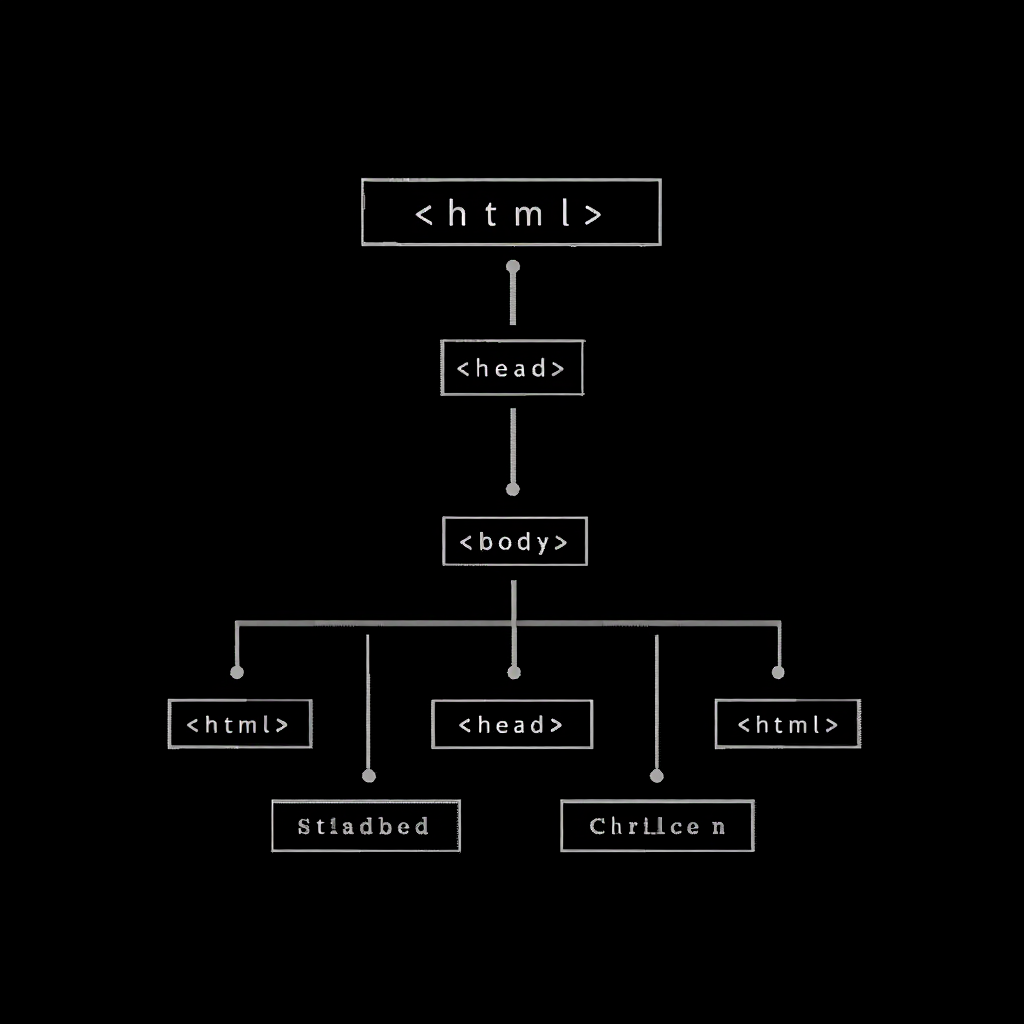
What is HTML: The Structure of a Page
Understanding the basics of HTML is like learning the alphabet of the web. Each tag has a role: some identify titles, others wrap text, and some bring in media. Without these elements, content would appear as plain text without order. Clean markup is the foundation for any design.
Why Structure Matters
HTML provides meaning to content. A heading indicates importance, while a paragraph ensures text stays readable. Search engines rely on these signals, so organized markup also boosts visibility. A study by Stanford University (2019, California) showed that 94% of first impressions about a website are related to design and structure. This proves why the basics of HTML are essential before diving deeper.
Rule 1: Clear structure is the backbone of readability and search visibility.
Practicing the First File
A simple way to begin is to open a text editor and create index.html. Add <!DOCTYPE html> at the top, then start the <html> tag. Place <head> with a title and a css line, followed by <body> containing a heading and a short paragraph. Save and open it in a browser to see how the basics of HTML work. Here’s a simple example of a first HTML file to practice with:
text
<!DOCTYPE html>
<html lang="en">
<head>
    <meta charset="UTF-8">
    <title>My First Page</title>
    <link rel="stylesheet" href="style.css">
</head>
<body>
    <h1>Welcome to HTML Basics</h1>
    <p>This is a simple paragraph to test structure.</p>
</body>
</html>
Create an index.html file with this code, open it in your browser and experiment with adding tags.
Keeping Code Clean
Professionals recommend avoiding unnecessary nesting or redundant tags. Each element should serve a purpose.
“Good code is like good writing: short, clear, and easy to follow,” — Jeffrey Zeldman, web standards advocate and author.
Simple markup makes styling with css basics smoother and maintenance easier.
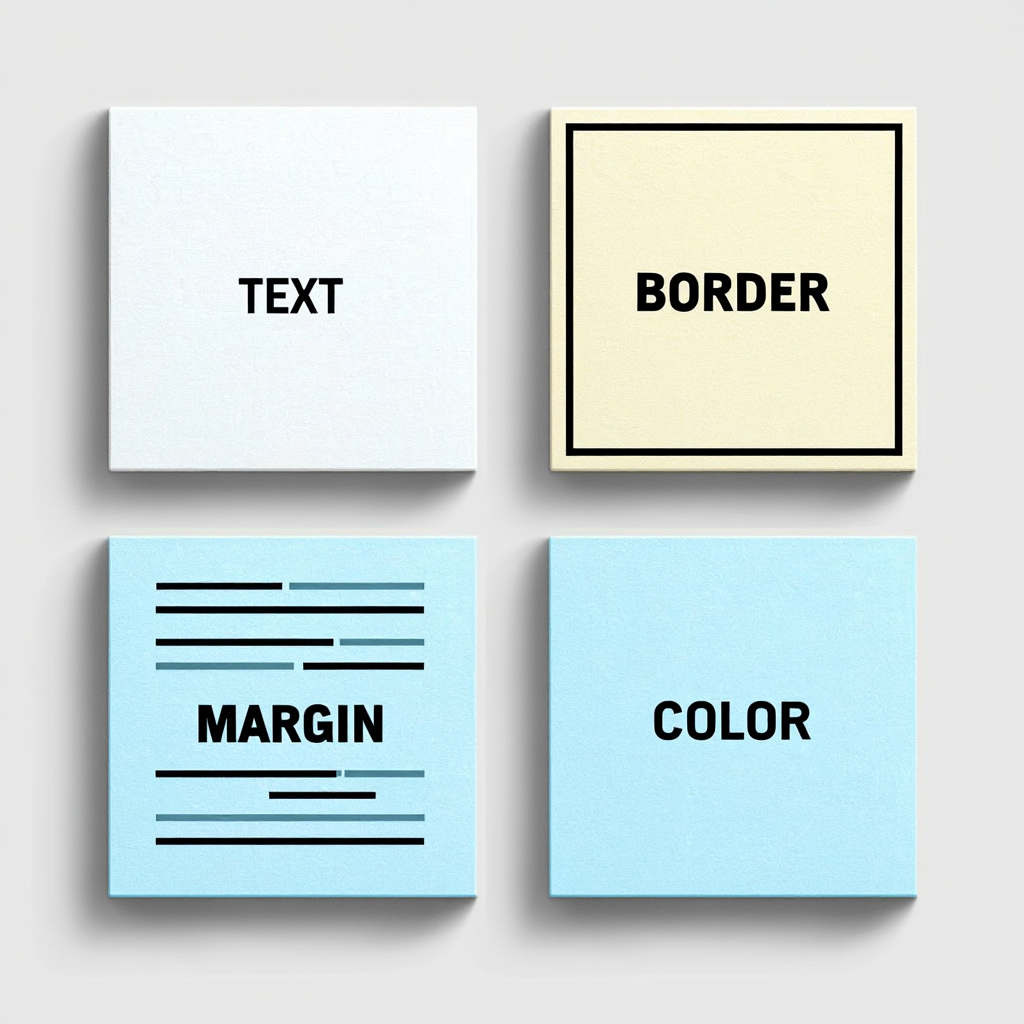
CSS Basics: Styling the Blocks
Learning css basics is the second essential step after mastering markup. If HTML builds the skeleton, the design layer gives it a personality. Fonts, colors, and layouts all come from visual instructions. Without this layer of formatting, even the strongest structure looks plain.
Why CSS is Essential
A raw page of text is functional but unappealing. Once a css is linked, everything transforms. Developers can apply background shades, adjust text in css for readability, and add css borders for visual balance. A survey by Adobe (2020, San Francisco) revealed that 38% of users stop engaging with a site if the layout or visuals are unattractive.
Rule 2: Styling is not decoration; it’s usability in action.
Understanding Selectors and Properties
A stylesheet works by targeting elements using selectors. Properties define what should change, and values decide how. For example, p { color: blue; } turns all paragraphs blue. This principle lets beginners turn the basics of HTML into polished layouts. When your project grows, managing colors, spacing, and themes becomes much easier with dynamic styles — you can update the entire look of the site in just one place without hunting through hundreds of lines.
Practicing with Borders
Adding css borders is a beginner-friendly exercise. A paragraph surrounded by border: 2px solid red; instantly stands out. Changing style, thickness, or color teaches how small adjustments affect design. It also introduces the concept of separating blocks visually.
Working with Text
Text in css involves more than choosing a font. Developers must also manage line height, spacing, and alignment.
“Whitespace is as important as content; it gives text room to breathe,” — John Maeda, designer and professor at MIT Media Lab.
Adjustments like spacing and font size improve readability dramatically.
Common Mistakes
Beginners often forget to close braces, write incorrect selectors, or overuse inline rules. This leads to cluttered code that’s hard to maintain. External style instructions with css lines keep things cleaner.
Mistakes to Watch Out For
- Missing braces or semicolons.
- Overwriting rules due to cascade order.
- Naming classes without clarity.
- Skipping tests on multiple screen sizes.
Here’s an example of clean, mistake-proof CSS with comments to help you avoid those pitfalls:
CSS
/* Good selector – no accidental overrides */
p {
    color: blue;          /* Text color */
    border: 1px solid black; /* Visible border for debugging */
}

/* Avoid inline styles – keep everything in the external file */
Always open the browser dev tools (F12), switch to mobile view, and test your changes live. This habit will save you tons of headaches later.
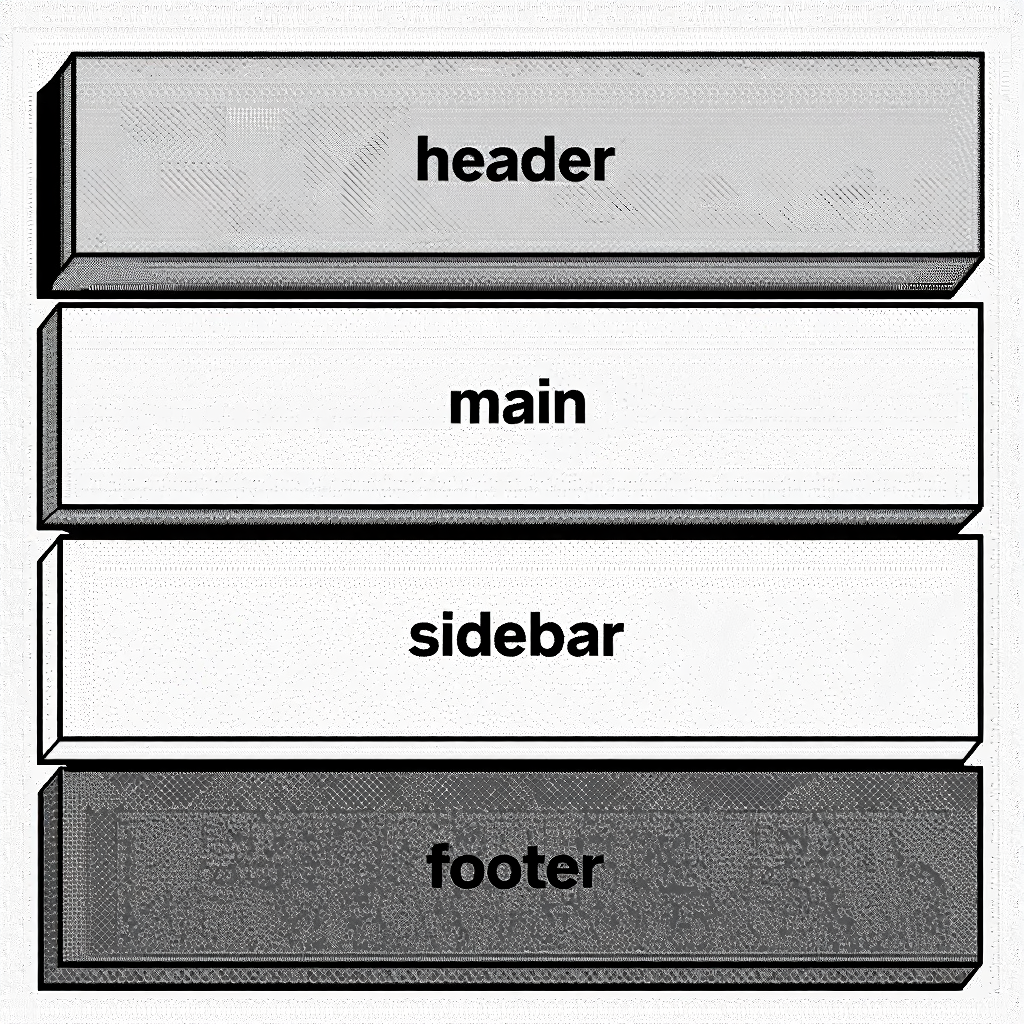
Building Step by Step: From Header to Footer
When working with the basics of HTML and css basics, order matters. Constructing a page section by section reduces errors and makes updates easier. Moving from the header to the footer creates a clear path. This process also mirrors professional workflows.
To help you picture the layout before you code, here’s a quick overview of the main sections:
| Section | Purpose | Typical CSS styles |
|---|---|---|
| Header | Logo, navigation, hero area | background, padding, flex |
| Main | Core content (text, images) | margin, padding, max-width |
| Footer | Copyright, social links, contact | text-align, border-top |
This simple structure keeps your page organized and makes styling way easier.
Step 1: Creating the Header
Start with <header> inside the body. Place a <h1> for the title and a <nav> for navigation links. Use css borders to separate the header visually. Apply a css early to manage colors and spacing consistently.
Step 2: Adding the Main Area
Below the header, create <main>. Insert headings, paragraphs, and images with proper alt text. Adjust text in css by controlling font size and spacing for readability. To make sure images look sharp and load quickly on phones, tablets, and desktops alike, learn to implement responsive images right from the start — this prevents slow pages and frustrated visitors.
Step 3: Designing a Sidebar
Insert <aside> for extra information or links. A contrasting background and css borders distinguish it from the main area. Simple presentation rules, whether flexbox or float, keep layout balanced. Sidebars should complement, not overwhelm.
Step 4: Building the Footer
Close the page with <footer>. Add copyright information, links, or contact notes. Center elements and use css basics to align with the overall theme. Subtle borders give the page closure.
Step 5: Reviewing and Testing
Open the page in a browser and inspect how each section looks. Resize the window to test responsiveness. Research by Google (2021, Mountain View) found that 53% of mobile users leave a site if it takes longer than three seconds to load. Clean markup and lightweight formatting improve performance.
Rule 3: A website should be built in layers—structure first, then style, then optimization.
After your first tests, focus on techniques to speed up page loading — even small optimizations like extracting critical styles can cut wait times dramatically and keep users engaged.
Use this ready-to-go template as the foundation for your first real project. Just copy the code below, save the two files (index.html and style.css), open index.html in your browser, and start customizing — add your own text, colors, and images to make it yours.
HTML
<!-- index.html -->
<!DOCTYPE html>
<html lang="en">
<head>
<meta charset="UTF-8">
<meta name="viewport" content="width=device-width, initial-scale=1.0">
<title>My First Website</title>
<link rel="stylesheet" href="style.css">
</head>
<body>
<header>
<h1>Welcome to My Site</h1>
</header>
<main>
<p>This is where your main content goes. Feel free to add more paragraphs, images, or lists!</p>
</main>
<footer>
<p>© 2026 Your Name. All rights reserved.</p>
</footer>
</body>
</html>CSS/* style.css */
body {
font-family: Arial, sans-serif;
margin: 0;
line-height: 1.6;
}
header {
background-color: #f0f4f8;
padding: 2rem;
text-align: center;
}
main {
max-width: 800px;
margin: 2rem auto;
padding: 0 1rem;
}
footer {
background-color: #333;
color: white;
text-align: center;
padding: 1rem;
margin-top: 2rem;
}Comparison Table: Inline vs External CSS
| Feature | Inline CSS | External CSS |
|---|---|---|
| Location | Inside the element | Separate .css file |
| Reusability | Low | High |
| Code clarity | Messy | Clean |
| Best use case | Quick fixes | Large projects |

Where to Learn HTML and CSS
The basics of HTML and css basics can be learned efficiently with strong resources. Good references shorten the path to mastery. Learners should combine reading with practical building. Without both, progress slows.
Best Resources to Use
FreeCodeCamp offers interactive projects. MDN Web Docs serves as the most reliable technical reference. W3Schools is useful for simple explanations. Github provides real-world code examples. For offline use, learners sometimes download html lessons download materials, though practice should remain the priority.
Daily Practice Strategy
Consistent work is more effective than occasional marathons. Start with personal projects such as small profile pages. Add css borders to divide blocks and refine text in css for comfort. These exercises anchor the basics of HTML in memory.
Using Feedback
Sharing code in communities creates valuable opportunities for learning.
“Show your work early and often; feedback is the fastest teacher,” — Chris Coyier, front-end developer and creator of CSS-Tricks.
Constructive critique avoids bad habits and speeds growth.
Core Skills Checklist
- Grasping the basics of HTML structure.
- Linking stylesheets with css lines.
- Applying css basics like spacing and color.
- Dividing sections with css borders.
- Improving readability through text in css.
Practice Exercise
Create a simple profile card using HTML and CSS.
Your card should include a name, image, and short description.
HTML
<div class="card">
  <h3>John Doe</h3>
  <img src="photo.jpg" alt="Profile photo">
  <p>Beginner web developer learning HTML and CSS.</p>
</div>
CSS
.card {
  width: 300px;
  padding: 20px;
  background-color: #f2f2f2;
  text-align: center;
  border-radius: 8px;
}
FAQ
How to connect a stylesheet properly?
Include a css line inside <head>. The format is <link rel="stylesheet" href="style.css">.
Why use external CSS?
It keeps HTML clean and styles reusable. Inline rules mix structure with presentation, making updates harder.
What’s better for learning: frameworks or raw code?
Raw coding teaches fundamentals. Frameworks save time later, but the basics of HTML and css basics build deeper understanding.
How to improve text readability?
Adjust font size, spacing, and line height. Well-set text in css ensures comfort for readers.
Why are borders important?
Css borders give structure, guide attention, and add balance to layouts. They make sections stand out visually.
How do I debug HTML/CSS issues?
Use the browser’s developer tools (press F12): check the Console for errors, inspect elements to see what styles are actually applied, and tweak properties right there in real time. If a style isn’t showing up, double-check your selector spelling and make sure the CSS file is properly linked.
Below you’ll find a great video tutorial that visually demonstrates how to build a website from scratch using the basics of HTML and CSS. It complements the theoretical guide and helps reinforce practical learning.
Conclusion
Every developer begins by mastering the basics of HTML. This framework ensures content has meaning and order. Adding css basics, styling text in css, and experimenting with css borders bring projects to life. The css line links it all together into a unified design.
Using html lessons download resources is helpful, but practice builds real skill. Each experiment strengthens knowledge and confidence. Over time, creating a page from header to footer becomes second nature.
Anyone with patience and steady effort can build websites from scratch. The tools are free, the guidance is available, and the journey starts with a single line of code.
For readers who want to put theory into practice right away, there’s a practical bonus. At the end of this article, you can download a PDF handbook that includes HTML and stylesheet cheat sheets, real code snippets, expert tips, and a developer checklist. It’s designed to be a compact companion you can keep on your desktop while coding.

Sources
- 2016, DoubleClick by Google. The Need for Mobile Speed — A study on mobile site performance showing the impact of load times on user abandonment.
- John Maeda, 2006, The Laws of Simplicity (MIT Press) — Discusses the value of emptiness in design.
- Aaron Gustafson, 2011, Adaptive Web Design (Easy Readers) — Explains progressive enhancement in web building.
- Steve Krug, 2000, Don’t Make Me Think (New Riders) — Classic guide to intuitive web usability.